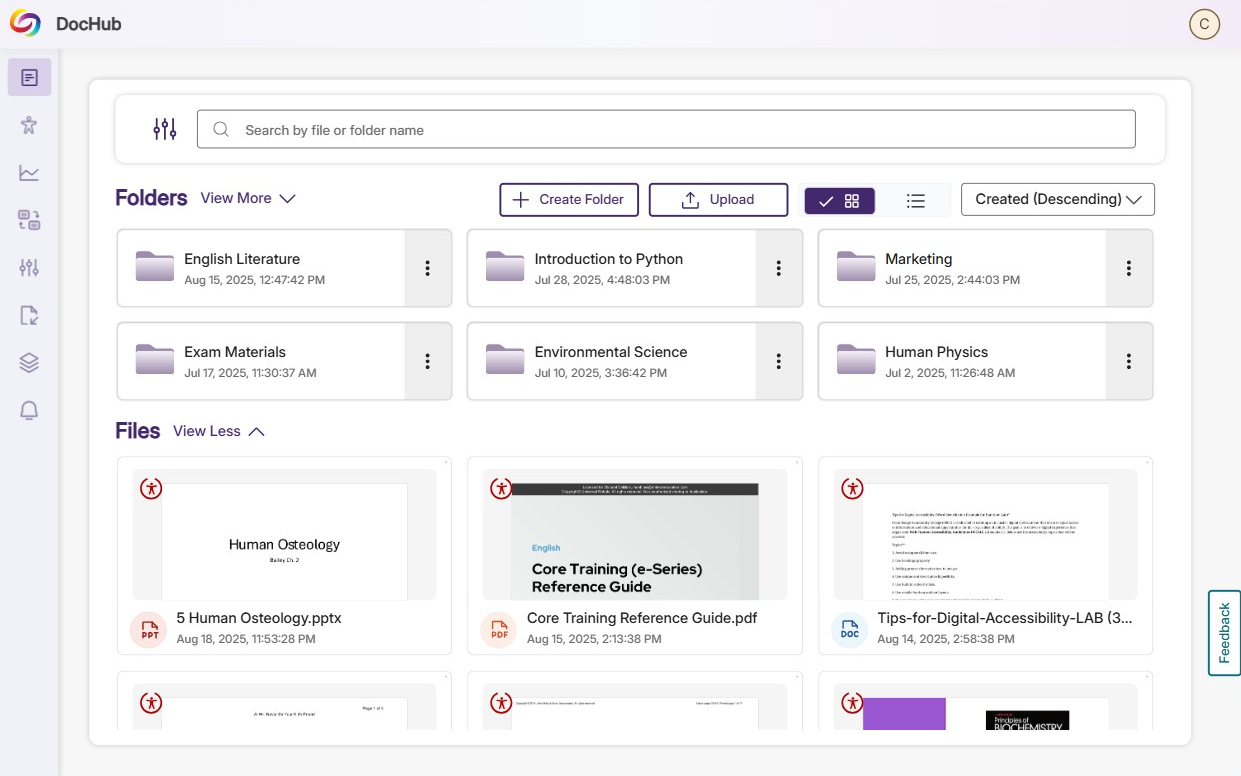
The YuJa Panorama Canvas Accessibility Platform provides students with access to Alternative Formats to meet their accessibility needs.
Accessing Alternative Formats
An Accessibility icon will be displayed next to each file in your course. Clicking it will open the Accessibility Report, which allows you to view and download alternative formats for your file.
- In your Learning Management System (LMS), locate the file within your course for which you want an alternative format.
-
Click the Alternative Formats icon next to the file.

Note: Your instructor may have set other colors for the Alternative Formats icon. If the alternative formats are disabled for certain documents, they will be indicated by the Disabled Alternative Formats icon.

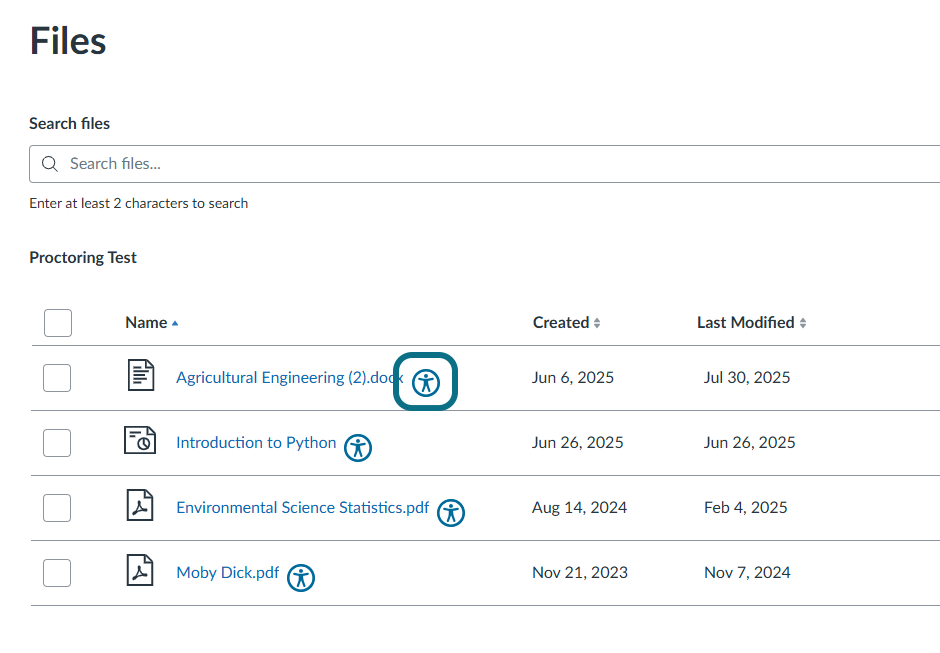
Accessing the Alternative Formats Menu
Alternative Formats allow for the conversion of documents into a wide variety of accessible formats. Refer to the list below to view available Alternative Formats in Panorama.
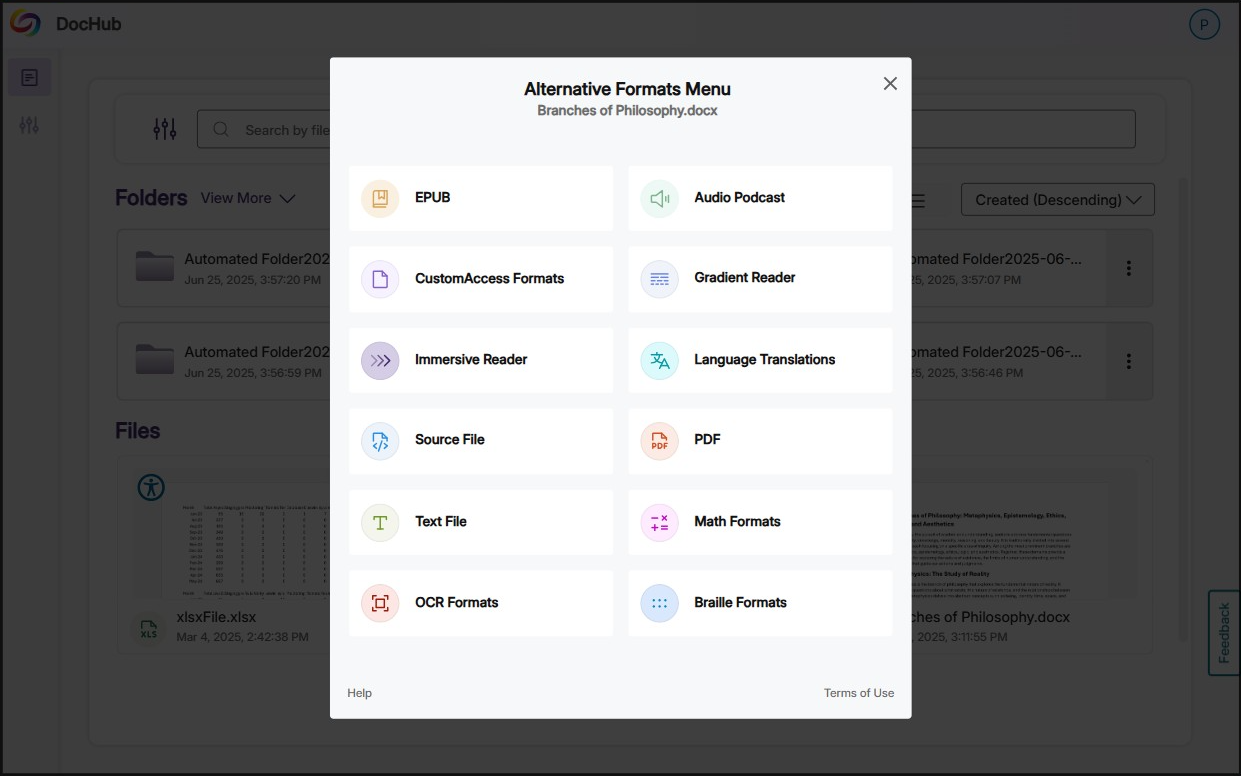
- Source File: Download the document in its original format.
- PDF: View the document in PDF format, suitable for both online and download viewing.
- Text File: View the document in a pure text format without any formatting styles, suitable for both online and download viewing.
- Immersive Reader: Allows for customizations to text preferences, grammar options, and reading preferences while following along with the audio playback.
- Gradient Reader: Enhances visual word recognition when reading by providing a guiding color gradient.
- EPUB: View the document in the ebook format, suitable for any ebook reader application.
- Braille: View the document in the braille grade 2 format, suitable for download viewing (a braille reader is required).
- BRF: Download the document in Braille Ready File format.
- UEB: Download the document in Unified English Braille format.
- Audio Podcast: Audio playback for documents, suitable for both online and download listening.
- Enhanced HTML: View HTML content with additional elements and attributes.
- OCR: Convert images with text into machine-encoded text that can be searched and read by screen readers.
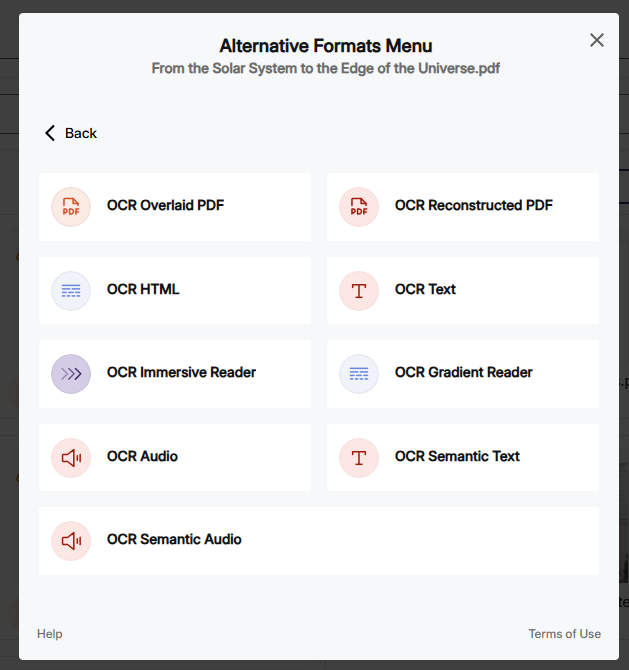
- OCR Overlaid PDF: Generate a tagged PDF that allows for selectable text overlaid on the original scanned document or image.
- OCR Reconstructed PDF: Generate a brand new tagged PDF from the scanned document or image.
- OCR HTML: Generate a new HTML file from scanned documents or images.
- OCR Text: Recommended for those who prefer plain text, the OCR tool extracts and displays text within images and GIFs as a TXT file.
- OCR Immersive Reader: View scanned text with the immersive reader.
- OCR Gradient Reader: Read aloud scanned text with a guiding color gradient.
- OCR Audio: Extract text within images and GIFs into an MP3 text-to-speech audio player.
- OCR Semantic Text: Convert scanned text into readable, structured text while preserving context and layout.
- OCR Semantic Audio: Convert scanned text into audio with natural intonation and emphasis.
- Math Formats: Convert documents containing math equations into LaTeX, Math Text (i.e., numbers and symbols to words), or MP3 files. To learn more about Math Formats, click here.
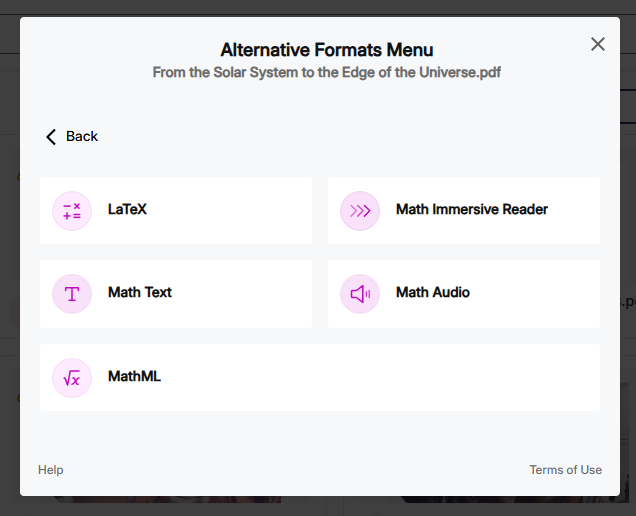
- Latex: Convert documents into LaTeX document format.
- Math Text: Convert documents into printed English, including numbers and symbols.
- Math Audio: Convert documents to MP3.
- Math Immersive Reader: View a plain-text representation of mathematical expressions with the immersive reader.
- MathML: Extract mathematical equations from documents and convert them into HTML files.
- Language Translation: Translate the document into your selected language.
- Translated Source File: Download the translated document in its original format.
- Translated PDF: Generate the translated document in PDF format.
- Translated Text File: Generate the translated document in a pure text format.
- Translated Gradient Reader: Read aloud the translated document with a guiding color gradient.
- Translated EPUB: Download the translated document in e-book format.
- Translated Audio Podcast: Generate an audio playback of the translated document.
- Translated Enhanced HTML: View translated HTML content with additional elements and attributes.
- Library Reference: View details about the reading material.
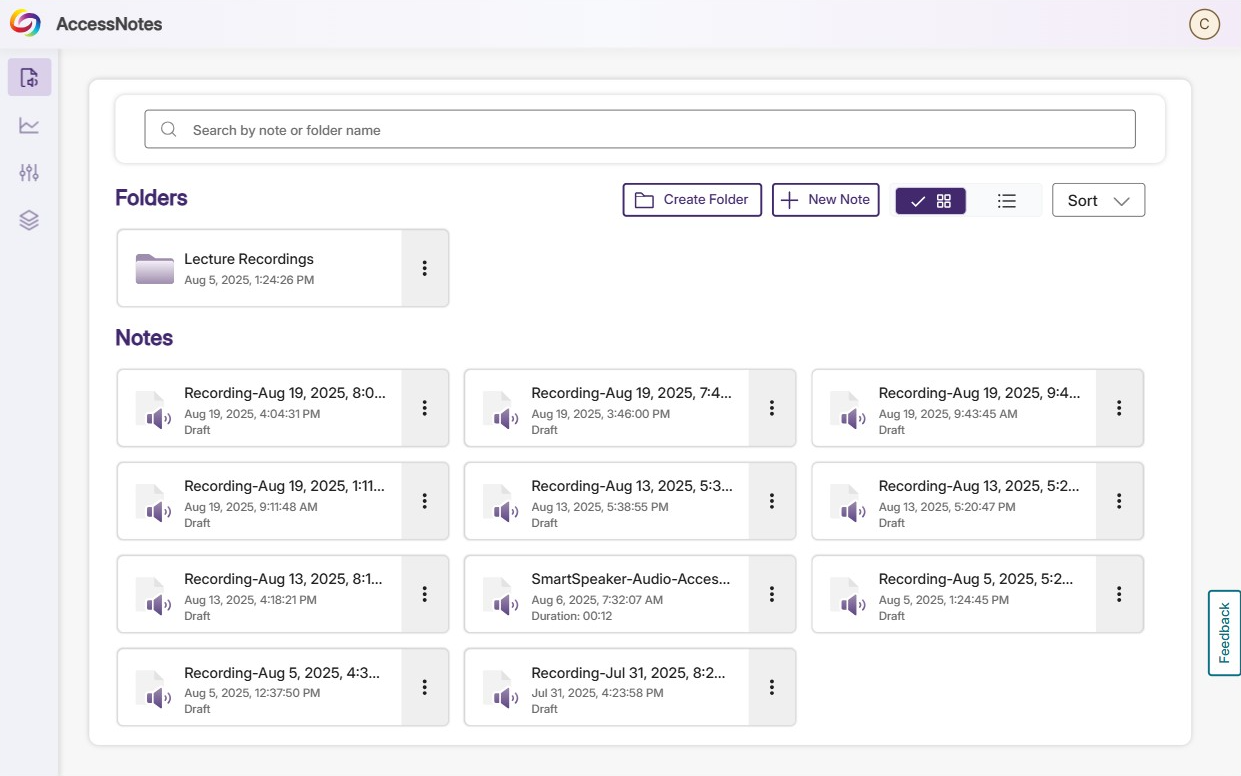
Accessing YuJa AccessNotes
YuJa AccessNotes allows you to record or upload audio-based recordings to your YuJa Panorama platform. You can also embed supplementary materials into your audio-based notes and ask an AI assistant questions during audio playback to clarify complex concepts. See our guide on Recording and Uploading an Audio Note in AccessNotes.
Accessing YuJa SmartSpeaker
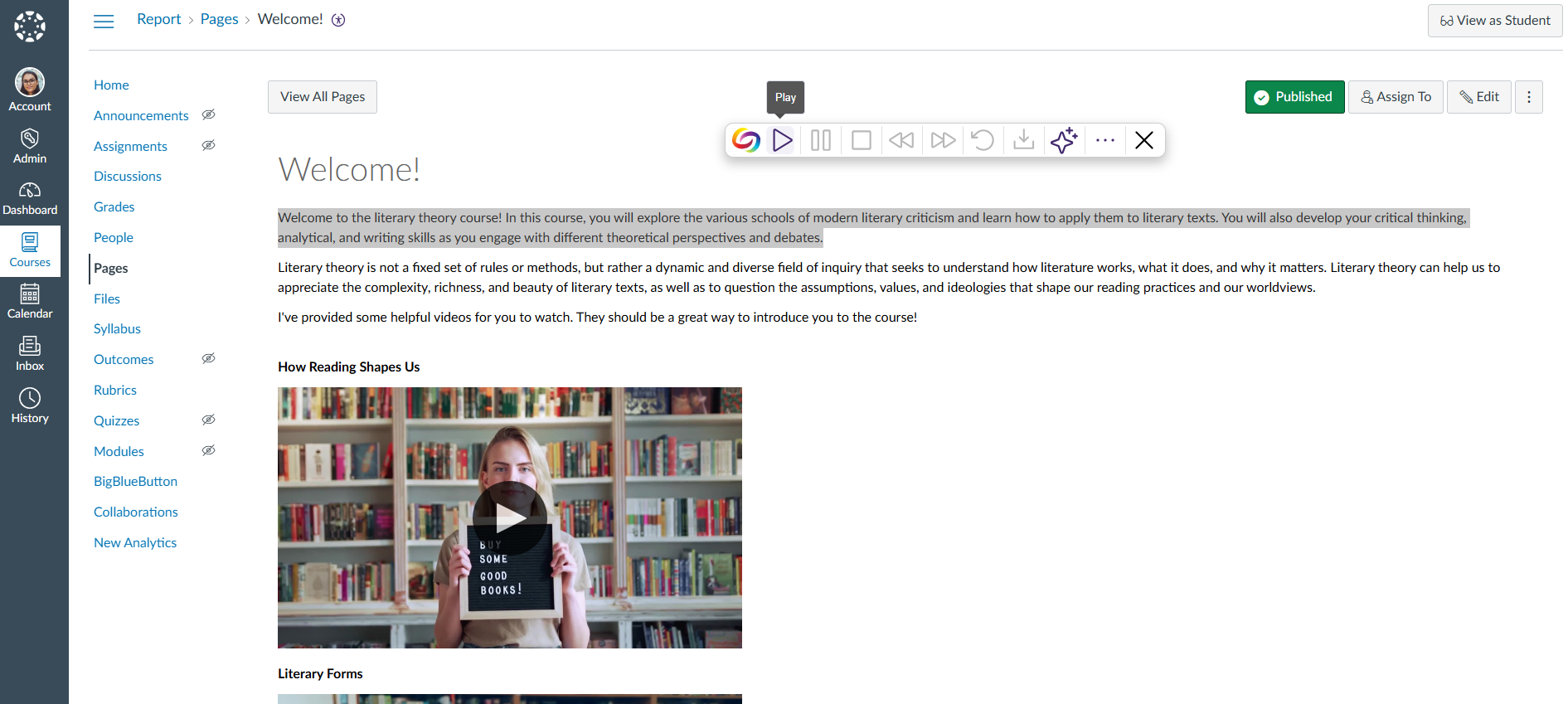
SmartSpeaker offers text-to-speech functionality, allowing you to play web content with customizable voice options, highlighted text for better readability, text summarization, and more. See our guide on Using Panorama's SmartSpeaker.
Accessing DocHub
The DocHub page is a platform for accessible document storage that allows you to upload and store files in the YuJa Panorama Cloud. You can share files via email and synchronize your accessible content across multiple devices. See our guide on Doc Hub.